
How to Set Up Dolphin Emulator
Dolphin Emulator is an emulator that allows you to play both Wii and Gamecube games. Many Sonic games released in the 2000s were released on both the Game Cube and the Wii, meaning that Dolphin Emulator is practically a go-to option for playing most of these games. This tutorial will go over how to install Dolphin Emulator and how to get games running on it. Warning: The majority of this tutorial was tested on Windows 10 and 11. I intend on adjusting the tutorial to work with all OS's that Dolphin Emulator can be run on.
Downloading Dolphin Emulator
- First off, you are going to want to go to Dolphin Emulator's official website: https://dolphin-emu.org/
NOTE: Do not download Dolphin Emulator from anywhere that isn't either the official website or the official Github Repository. You will run the risk of unintentionally downloading malware if you download the emulator from anywhere else.
- Select whichever version of Dolphin Emulator is appropriate for your operating system. If you are downloading the Windows version, as stated on the website, you will need to download "64-bit Visual C++ Redistributable".
- Once the file is done downloading, locate your download folder (or wherever you decided to have the emulator download) and you should find a .zip file that contains the emulator and everything needed to make the emulator run. Right click the zipped folder and click "Extract all." Additionally, if for whatever reason, your computer doesn't have the ability to extract files, you can download 7-Zip, which is a file extractor that will get the job done. Now just wait for your computer to finish extracting the files.
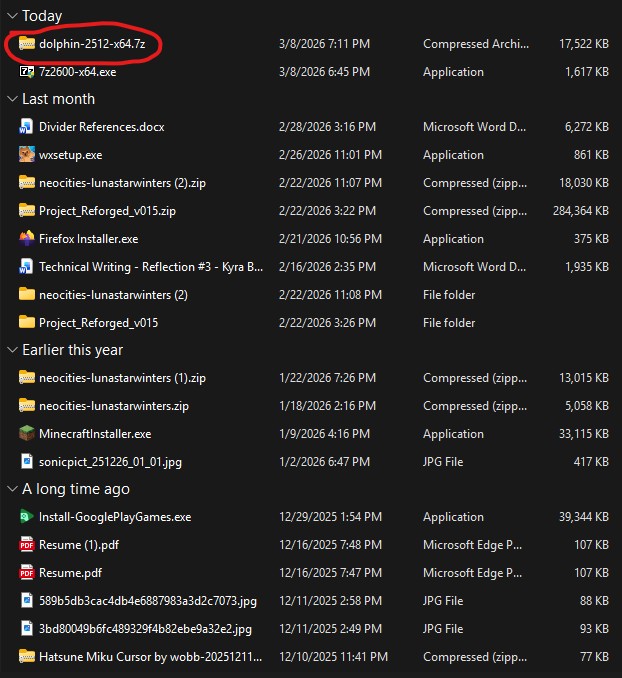
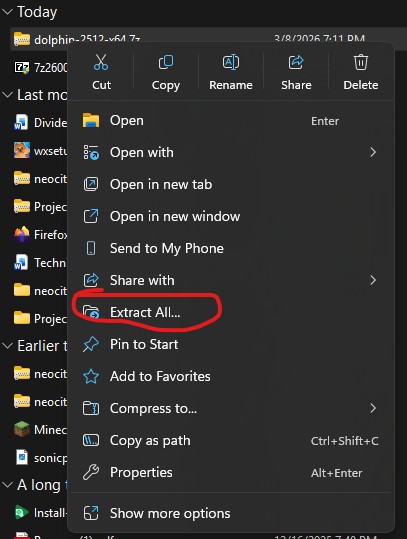
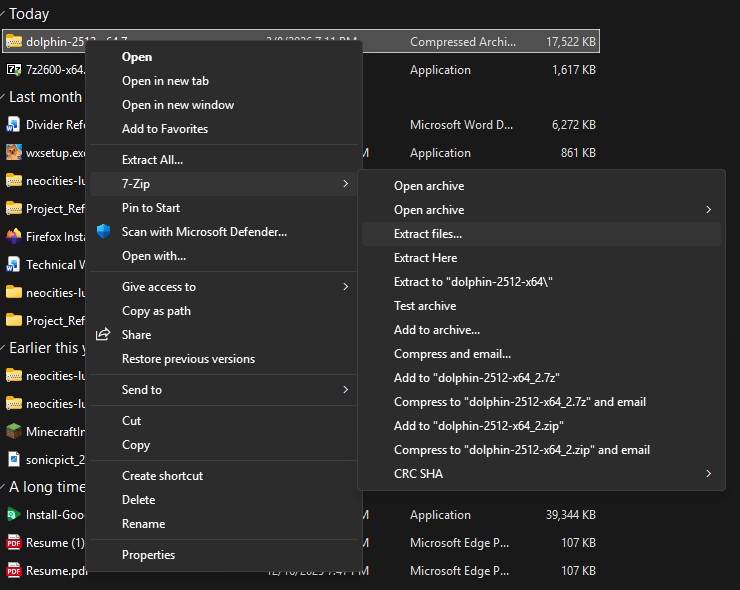
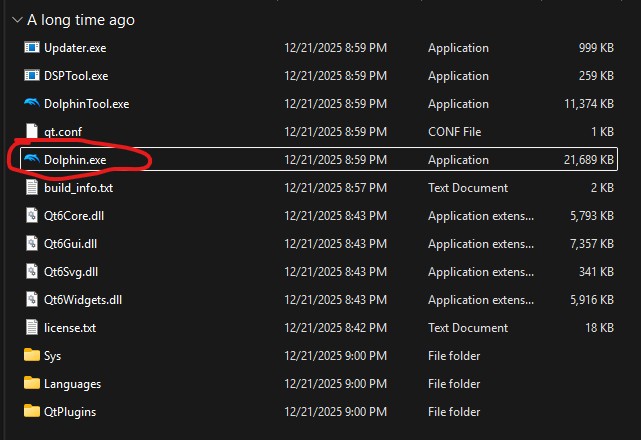
- Once the files are done extracting, your computer will either automatically open the folder for you or you will have to locate the extracted folder itself (which will hopefully be in the same place as the original .zip file) Once you locate the folder, just click "Dolphin.exe" (no, a scary Dolphin will not jumpscare you when you open it) and you will succesfully have downloaded and set up the emulator.
Note: When you first run the emulator, it will ask you if you would like to send diagnostic data to the people that make the emulator. It does not matter whether you choose yes or no, the emulator will run perfectly fine. This data is more specifically for them to figure out how to improve the emulator and address any errors or glitches that come from it.
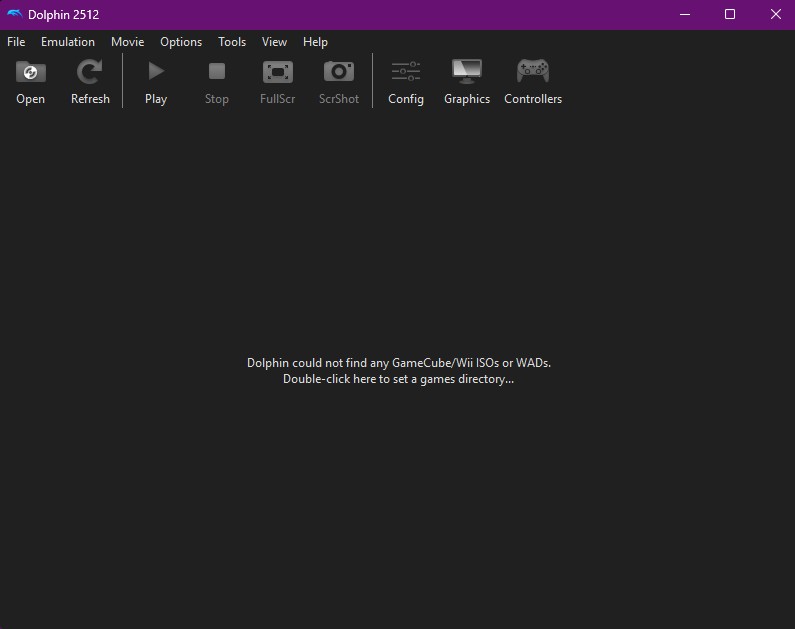
This is what you should be seeing after you open the emulator.
Setting up your games
Something you will very quickly notice is that there are no games included with Dolphin Emulator. This is actually what keeps Dolphin Emulator legal. If Dolphin provided the games, downloading the emulator would be considered pirating (more on that soon). Instead, the intention with the emulator is that you take your own Wii and Gamecube games and use the files in those to run the games in the emulator. So, unfortunately, there is some cost that will still need to be spent in order to play any games on Dolphin most of the time. Luckily, most Wii and Gamecube games do run for pretty cheap making it rather affordable to be able to get games for the emulator.
- First off, you are going to want to follow Dolphin Emulator's own tutorial on how to get your game's files and convert them into a .iso. Click here for the tutorial.
- Once you finally have your game file, it's time to actually play it in Dolphin Emulator. The best way to access your games is to set up a directory. Create a folder that you will be able to easily find that contains the files for your Wii/Gamecube game(s).
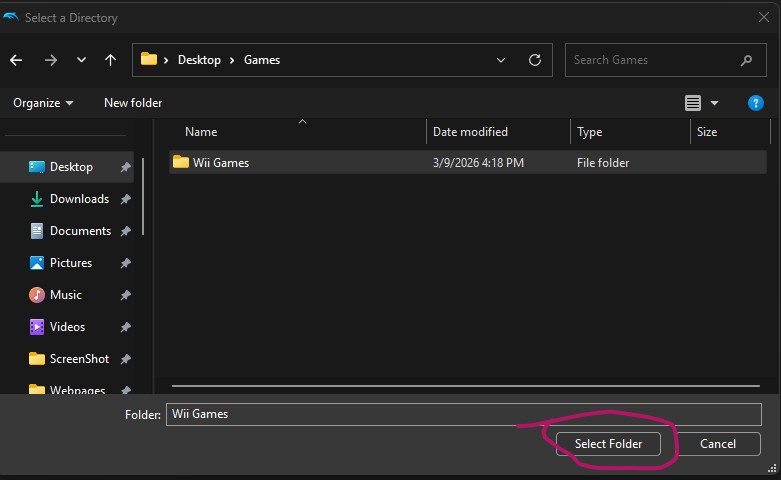
- Once you have created your folder, double click the center of Dolphin Emulator's screen. This should pop up your file explorer on your computer. Locate where you put the folder.
- After you have located the folder, click open.
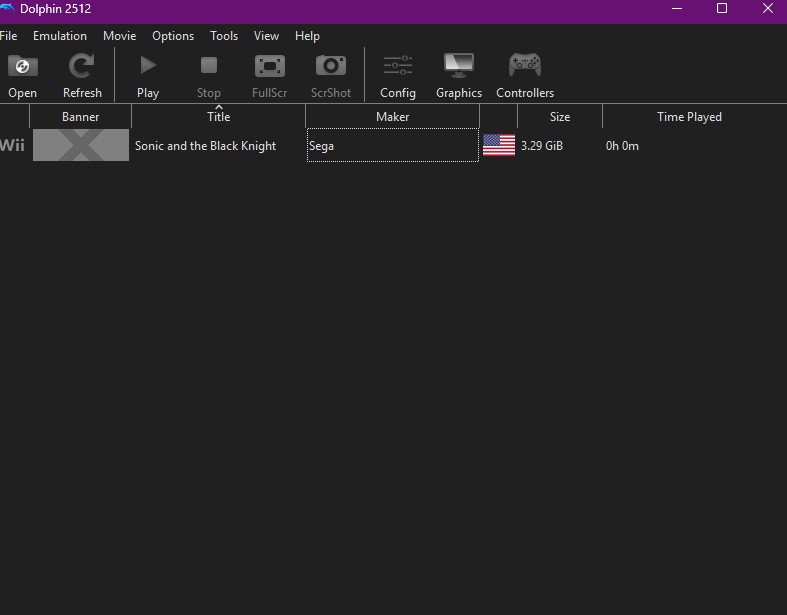
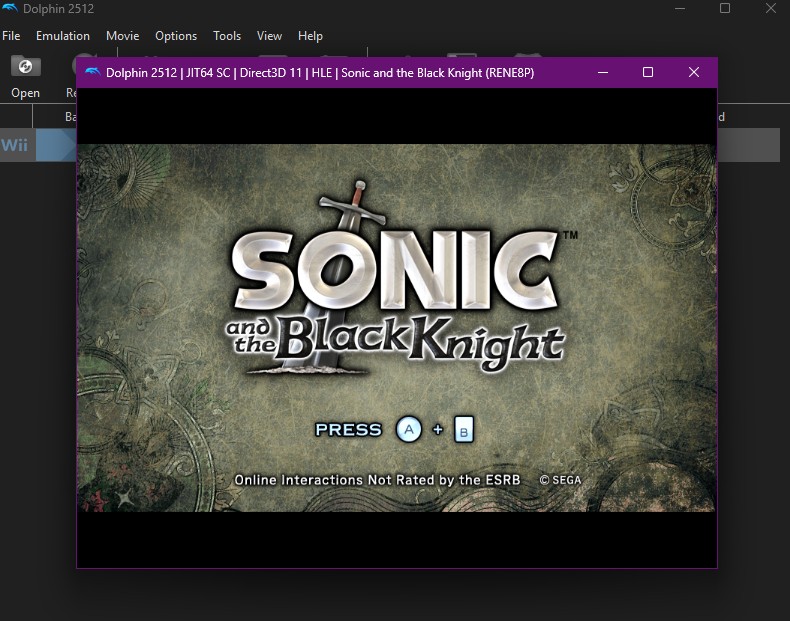
- You should see all of the games that you have put in your folder pop in Dolphin Emulator. Once your games show up, all you have to do is just double click whichever one you want to play and you are good to go! Note: If there is a grey x where the games photo should be, do not worry. That just means you didn't have the image file. You can still play your games.
BONUS: How to Set Up the Wii menu
Did you know that Dolphin Emulator can emulate the Wii menu and it's features? Well, now you do! While this is not a necessary step that needs to be taken in order to play games, it certaintly does add to the Wii experience. So, if you would like to be able to set the menu up, just follow this super simple tutorial.
- First, you are going to want to access "Tools" on the top navigation bar in Dolphin Emulator. Look for "Perform Online System Update" and then select whichever country. You do not have to choose the country you live in, however if you are playing a region locked game, you may want to choose the country that game was made for.
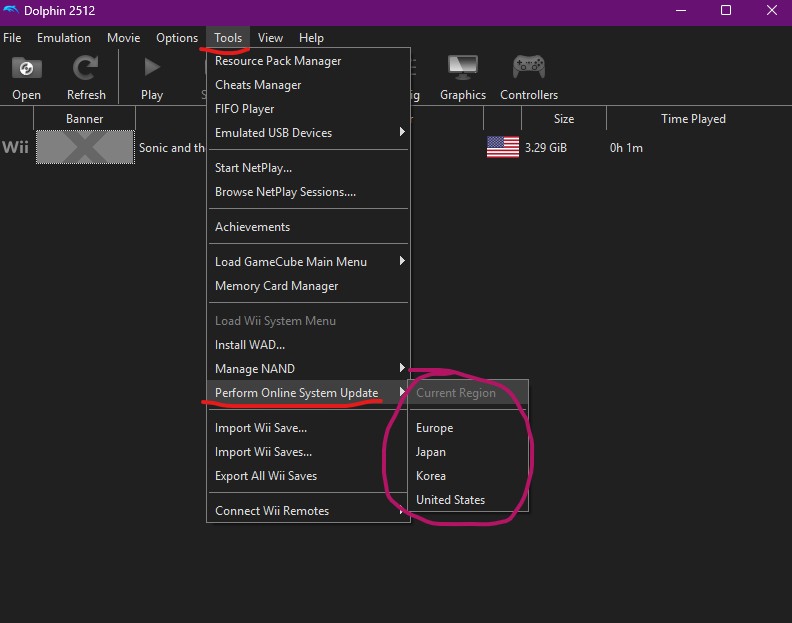
- After you select yes, just wait for it to download.
- Once the menu finishes downloading, go back to "Tools". This time, you are going to want to select "Load Wii System Menu 4.3U."
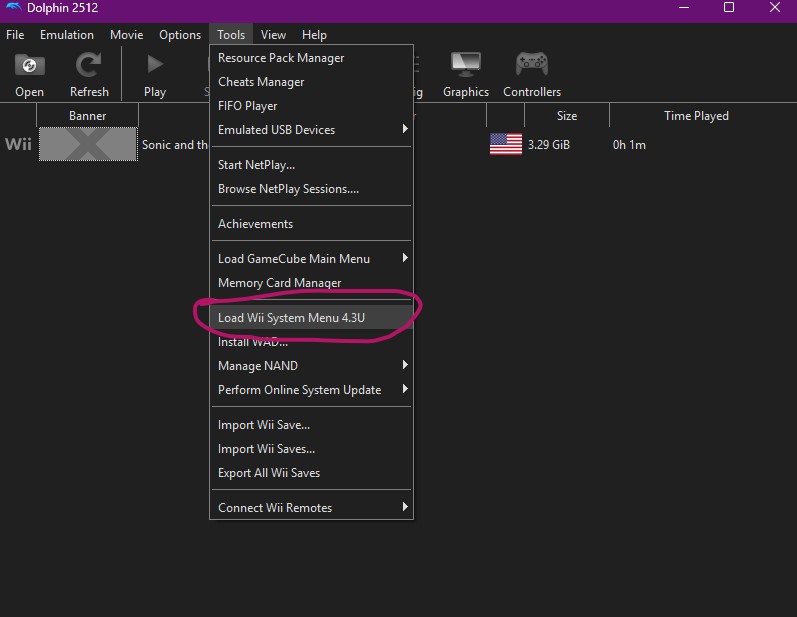
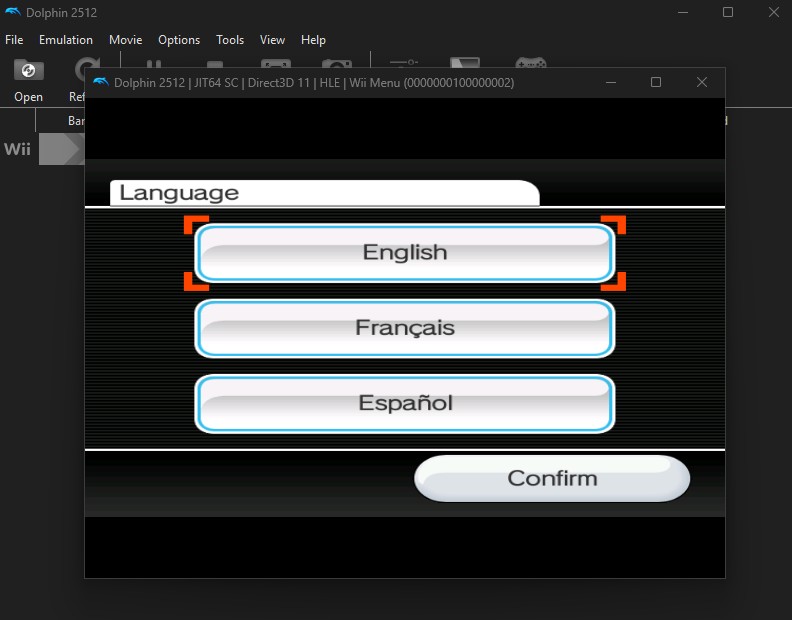
- You are almost there. Once you open the menu, you will need to go through set up. This is essentially the same set up that you would have to do if you got a completely new Wii. Note: The Wii cursor might not be synced up to where your computer cursor is. You may want to mess around with Dolphin Emulator's settings to fix this.
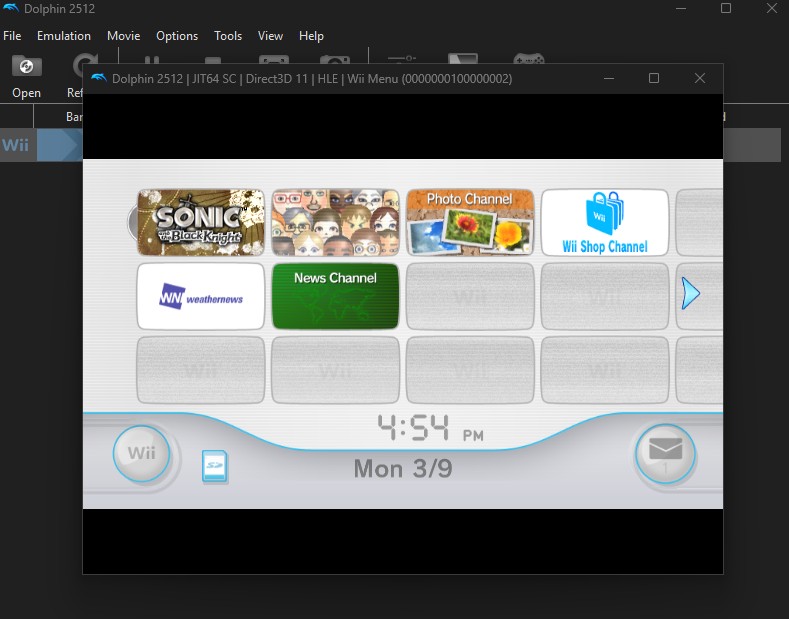
- Congratulations! You can now access the Wii menu on Dolphin Emulator! With this, not only can you basically simulate the Wii experience to it's full potential, but you also have access to the Mii Maker now. You can also have any game of your choice show up in the CD Channel by going back to the Dolphin Emulator menu, right clicking your game, and selecting "Set as Default ISO." NOTE: The Wii Shop, Weather, and News Channels will not work as they require internet access to servers that have long since been shut down by Nintendo. There are ways to still access these channels, however that is far out of scope of this tutorial.
This website is not officially affliated with Sega, Sonic Team, or any other parties mentioned on this website. | Site Map